Schedule
Fixtures, training and what's coming up.
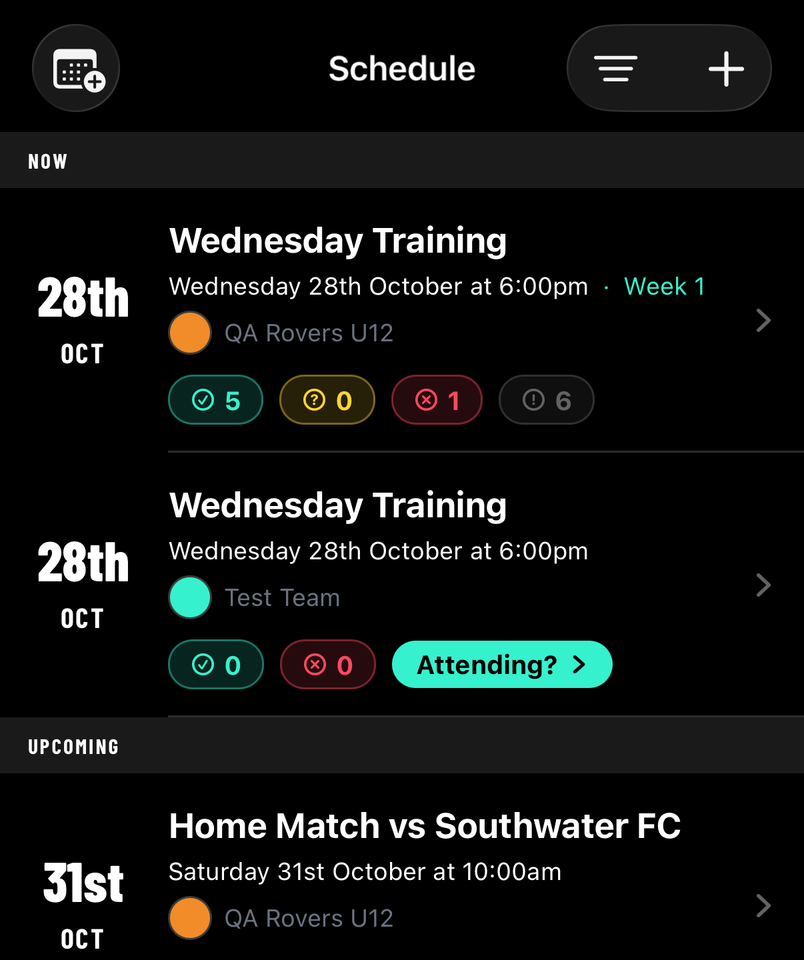
Every fixture and training session across your teams, soonest first. Tap one to open it; filters narrow it to a team or a type.
How to
Add a match or training session
For staff
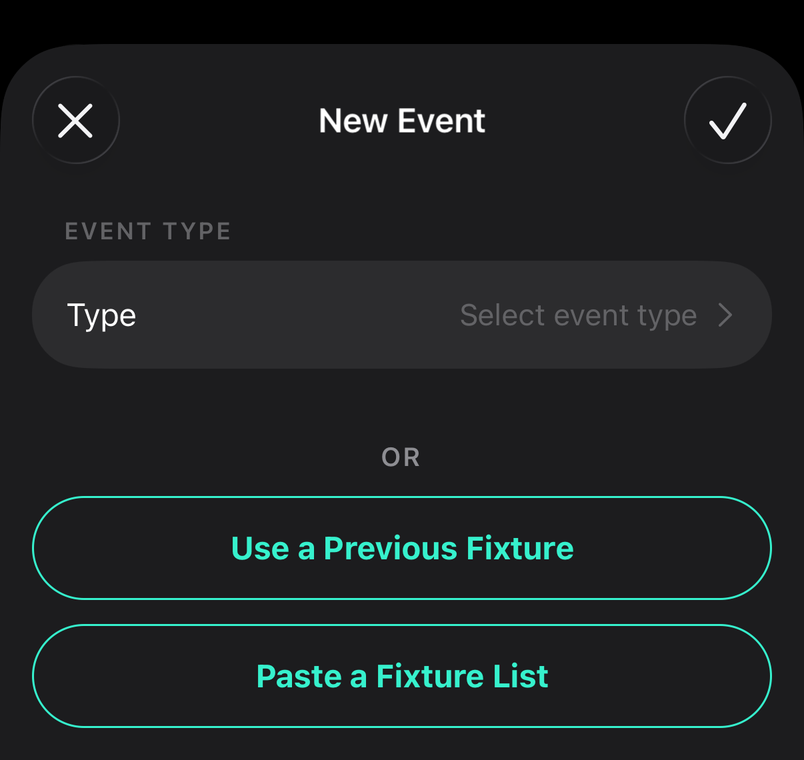
Tap + on the Schedule, pick the team, and fill in the opponent, date, time and venue.
- Tap + at the top of the Schedule.
- Choose the team and whether it's a match, training or another event.
- Set the opponent, date, time and venue. Leave the time as TBC if the league hasn't confirmed it.
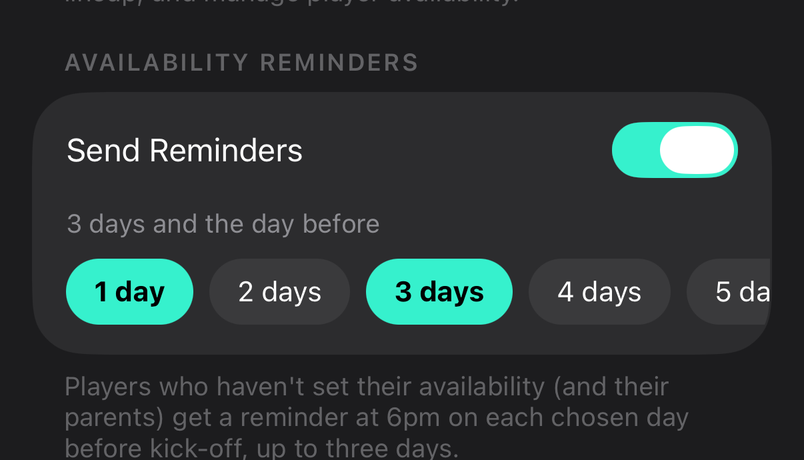
- Leave Send Reminders on and anyone who hasn't answered availability is nudged before kick-off.
Set training up once for the season
For staff
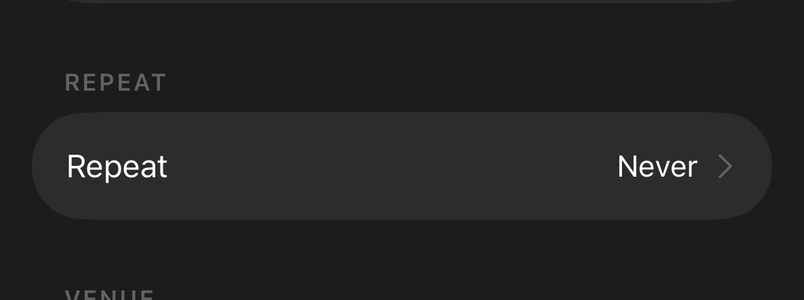
Create a training session, set it to repeat weekly and choose when it ends. Every session lands on the schedule in one go, each with its own availability.
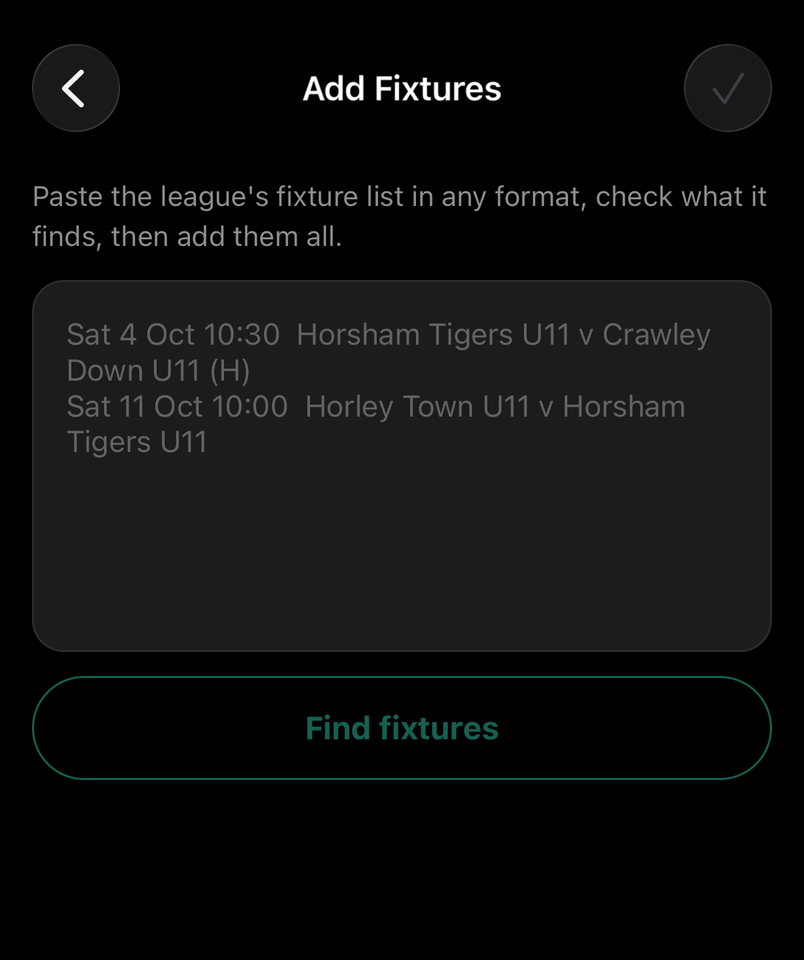
Paste the league's fixture listPRO
For staff
Copy the fixtures from the league's email or website into Add Fixtures from a List under the team. Lineup reads the dates, opponents and venues and creates them all for you to check.
See fixtures in your own calendar
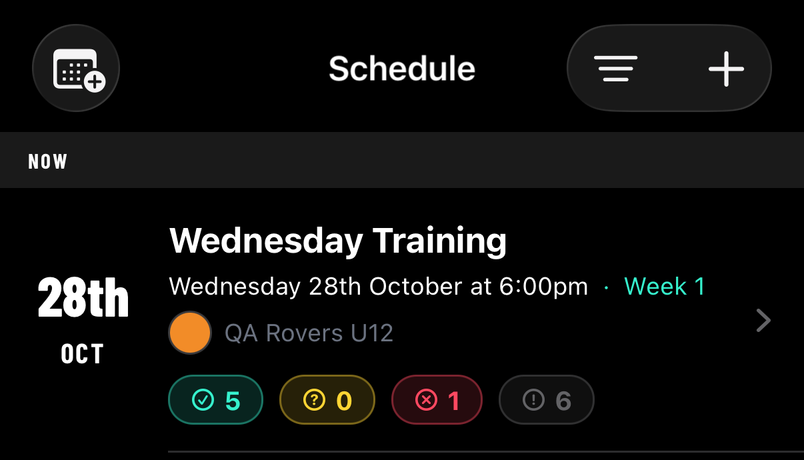
Tap the calendar button on the Schedule to subscribe your phone's calendar to your teams' fixtures. New matches and training appear there on their own.
Common questions
Who gets reminders, and when?
For staff
Anyone who hasn't answered availability is reminded in the days before a fixture, as long as Send Reminders was left on when it was created. Match-day notifications go to the whole team.